
Project Archiving
The project archiving feature is used to organize and store completed or cancelled projects for future reference or review.
Project Archiving Process
- Enter the project interface.
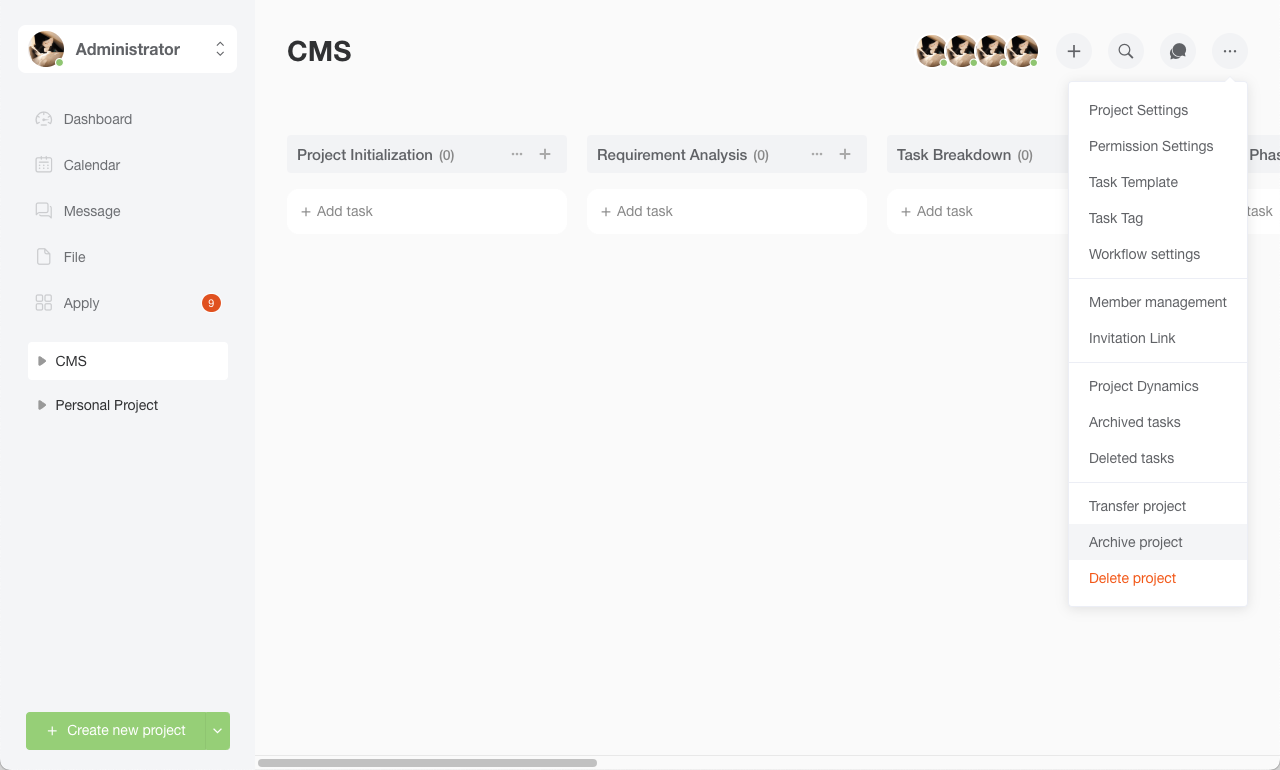
- Click the "three dots" button in the upper right corner of the project interface to expand the dropdown menu.
- In the dropdown menu, find and click the [Archive Project] option.
How to View Archived Projects
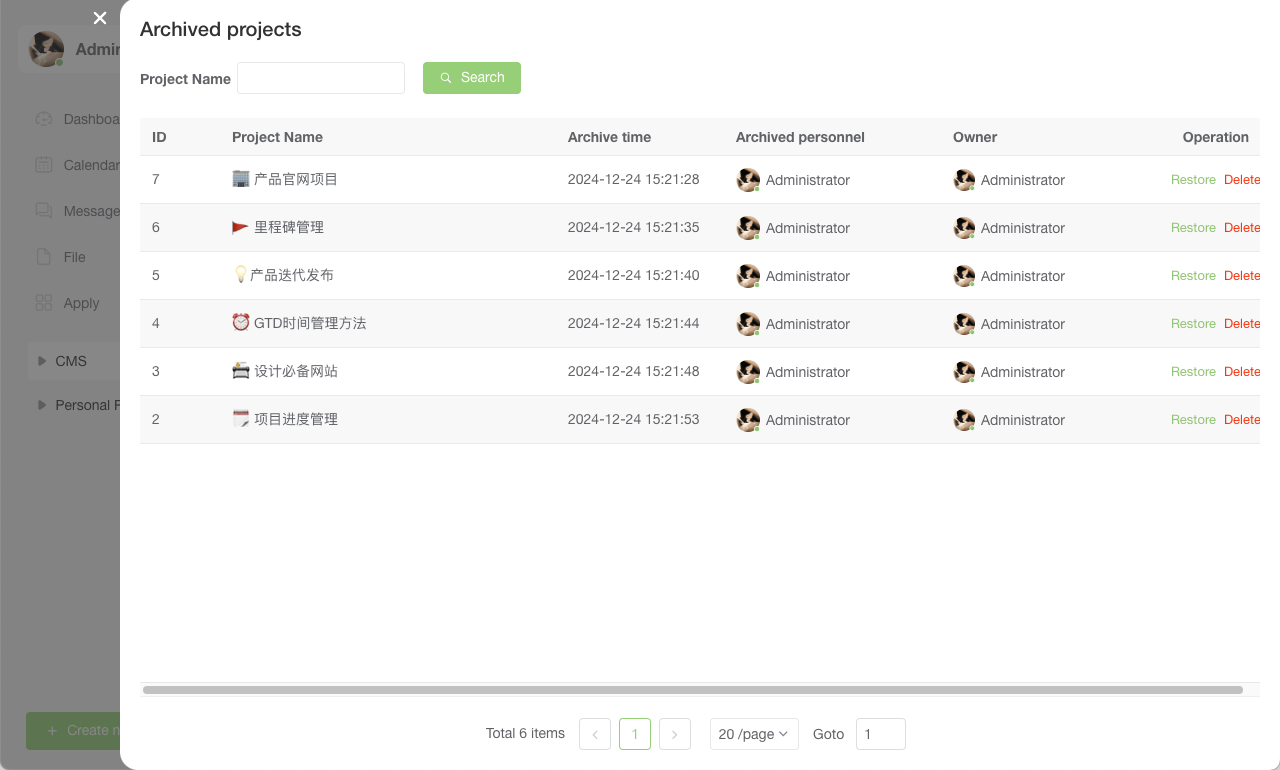
- Click on your [Avatar] in the upper right corner of the user interface to open a dropdown menu.
- In the dropdown menu, find and click [Archived Projects] to view archived projects through the expanded sidebar.
Archiving Rules
Project archiving supports choosing different archiving rules. When you select the system default rule, the interface displays a corresponding hint, informing you that the project will follow the "Auto Archive Tasks" rule configured by the system in System Settings, avoiding mistakes caused by not understanding the rule.
To customize the archiving timing, choose another rule in the project settings; when the system default is selected, it follows the system's unified configuration.
Key Features
- Archive Projects: Mark completed or cancelled projects as archived.
- View Archived Projects: Access archived projects and their related information at any time.
- Restore Projects: If needed, archived projects can be restored to their active state.